how to guide
Email API for AI Agents: What Your Agent Actually Needs
I built AutoSend so an AI agent can run our whole email stack. Here is what separates an agent-ready email API from a normal one, with real examples.
Yogini Bende • 22 Jun, 2026
Akash Bhadange • 07 Jan, 2026 • how to guide
You're sending legitimate emails to your customers, but Gmail is showing them a big orange warning: "We can't verify that this email came from the sender so it might not be safe to respond to it."
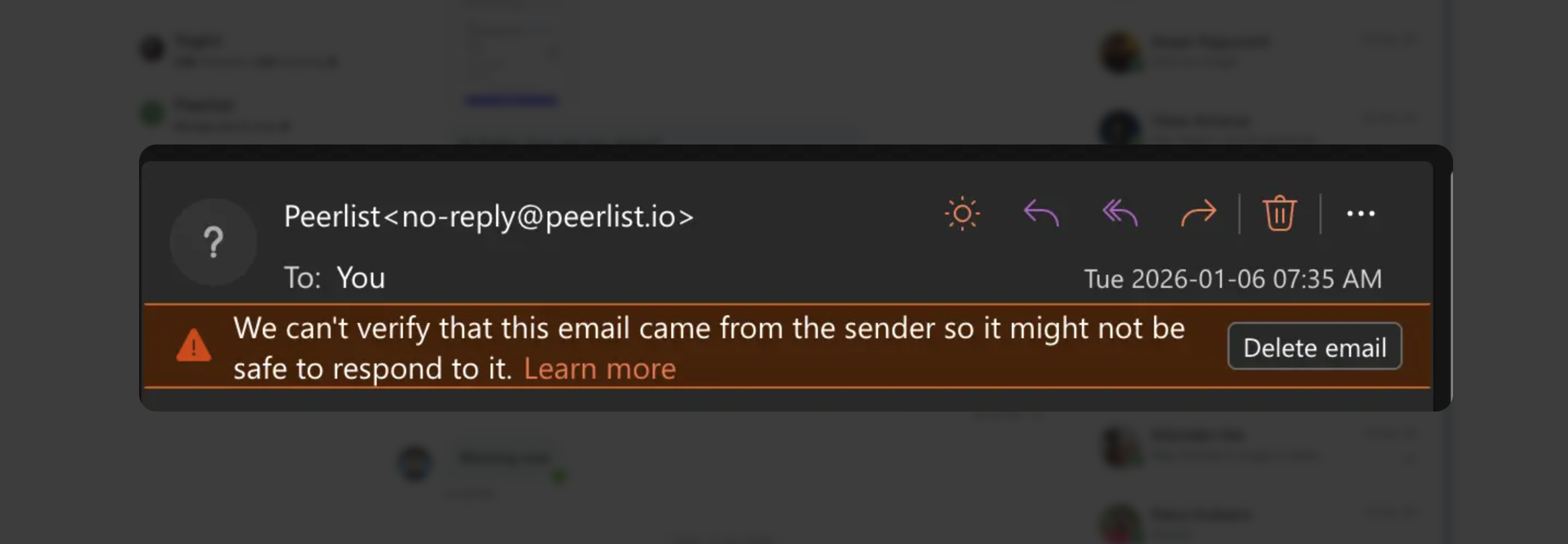
This sucks. Your emails aren't spam. You're not phishing anyone. But to Gmail and other inbox providers, they look suspicious.
If you're using an email service like AutoSend, Amazon SES, SendGrid, Postmark, or Mailgun to send emails, there's a good chance your DNS records are misconfigured. Specifically, something called DMARC alignment.
Here's what's actually happening and how to fix it.
When your email service sends an email on your behalf, there's a behind-the-scenes address called the Return-Path. This is different from the From address your customers see.
For example, when you send an email from [email protected], your email service might use [email protected] as the Return-Path. This is normal. Email services do this to handle bounces and track delivery.
The problem happens when you have something called "strict alignment" turned on in your DMARC settings. With strict alignment, these two addresses need to match exactly. But they don't because one uses a subdomain. So Gmail sees the mismatch and freaks out.
This is the issue most people hit when using email services. The fix is simple once you know what to look for.
Think of email authentication like a security system with three checks. Each one verifies something different about your email.
SPF is a list in your DNS that says "these mail servers are allowed to send emails for my domain." When you use an email service to send emails, you need to add them to this list.
The most common mistake is using -all at the end of your SPF record instead of ~all. The -all means "reject anything not on this list" which is too strict. If your email service isn't properly listed, your emails get rejected. Use ~all instead, which means "mark as suspicious" rather than outright rejection.
Another mistake is adding your email service to a subdomain but forgetting to add it to your main domain. If you send from [email protected], make sure your main domain's SPF record includes your email service.
Example SPF records:
If you're using Google Workspace and AutoSend:
v=spf1 include:_spf.google.com include:amazonses.com ~all
If you're using Google Workspace and SendGrid:
v=spf1 include:_spf.google.com include:sendgrid.net ~all
If you're using Microsoft 365 and Postmark:
v=spf1 include:spf.protection.outlook.com include:spf.mtasv.net ~all
The pattern is always: v=spf1 followed by domains, ending with ~all.
DKIM is a digital signature that proves your email hasn't been modified in transit. Your email service signs the email with a private key, and receivers check it with a public key in your DNS.
The issue happens when you have old DKIM keys from a previous email service but no keys from your current one. Or worse, empty DKIM records that say "we sign emails" but don't provide a way to verify them.
Make sure you have DKIM keys from your current email service in your DNS. Your email service dashboard will show you what records to add.
Example DKIM records:
Most email services give you TXT records to add. For AutoSend, you might add:
Record name: autosend._domainkey
Record type: TXT
Record value: p=MIGfMA0GCSqGSIb3DQEBAQUAA4GNADCBiQKBg...
For SendGrid, it might look like:
Record name: s1._domainkey.yourcompany.com
Record type: CNAME
Record value: s1.domainkey.u12345.wl.sendgrid.net
For Google Workspace, you'll get a TXT record:
Record name: google._domainkey.yourcompany.com
Record type: TXT
Record value: v=DKIM1; k=rsa; p=MIGfMA0GCSqGSIb3DQEBA...
Your email service will provide the exact values. Just copy them into your DNS.
DMARC tells email receivers what to do if SPF or DKIM checks fail. But it also does something tricky called "alignment checking."
There are two types of alignment: strict and relaxed. Strict alignment means the domains have to match exactly. So [email protected] and [email protected] don't match because one uses a subdomain.
Relaxed alignment is smarter. It understands that mail.yourcompany.com and yourcompany.com are part of the same organization, so it counts them as matching.
Almost every email service uses subdomains for technical stuff like bounces. This is why relaxed alignment is the standard, and why strict alignment breaks things.
Example DMARC records:
A good starting DMARC record with relaxed alignment:
Record name: _dmarc.yourcompany.com
Record type: TXT
Record value: v=DMARC1; p=none; rua=mailto:[email protected]; adkim=r; aspf=r
Once you've verified everything works, change to quarantine:
v=DMARC1; p=quarantine; rua=mailto:[email protected]; adkim=r; aspf=r; pct=100
Breaking down what each part means:
v=DMARC1 - DMARC version
p=quarantine - Put suspicious emails in spam (use p=none while testing)
rua=mailto:[email protected] - Where to send reports
adkim=r - Relaxed DKIM alignment (this is the important one)
aspf=r - Relaxed SPF alignment (also important)
pct=100 - Apply policy to 100% of emails
The key parts are adkim=r and aspf=r. These need to be set to r (relaxed) not s (strict).
First, check your actual DNS records. Don't trust what your DNS service provider's dashboard says. Use a command line tool or an online DNS checker to see what's actually there. Look up your domain's TXT records and your DMARC records.
Common things you'll find: multiple DMARC records (you can only have one), strict alignment enabled when it should be relaxed, or your email service missing from your main domain's SPF record.
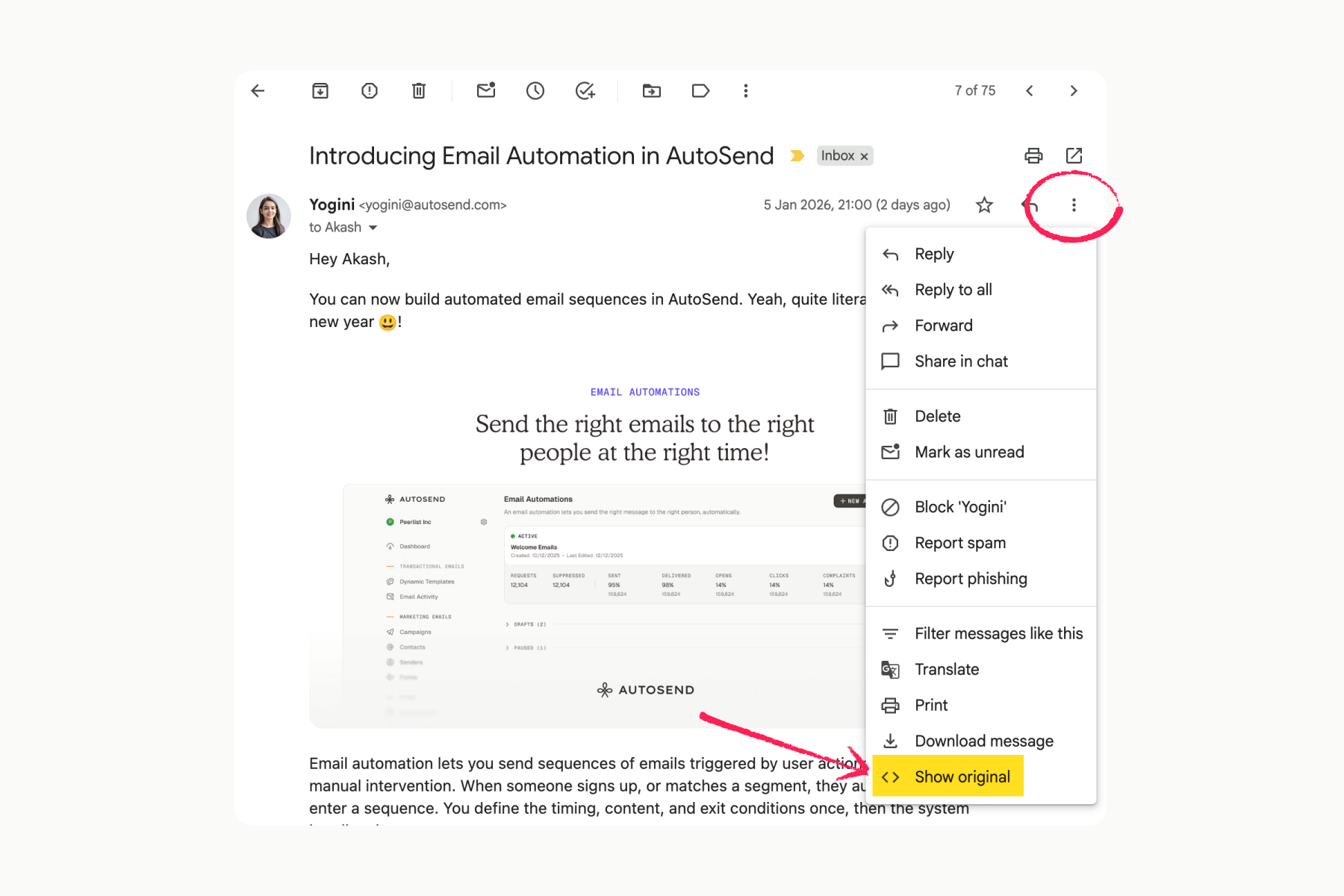
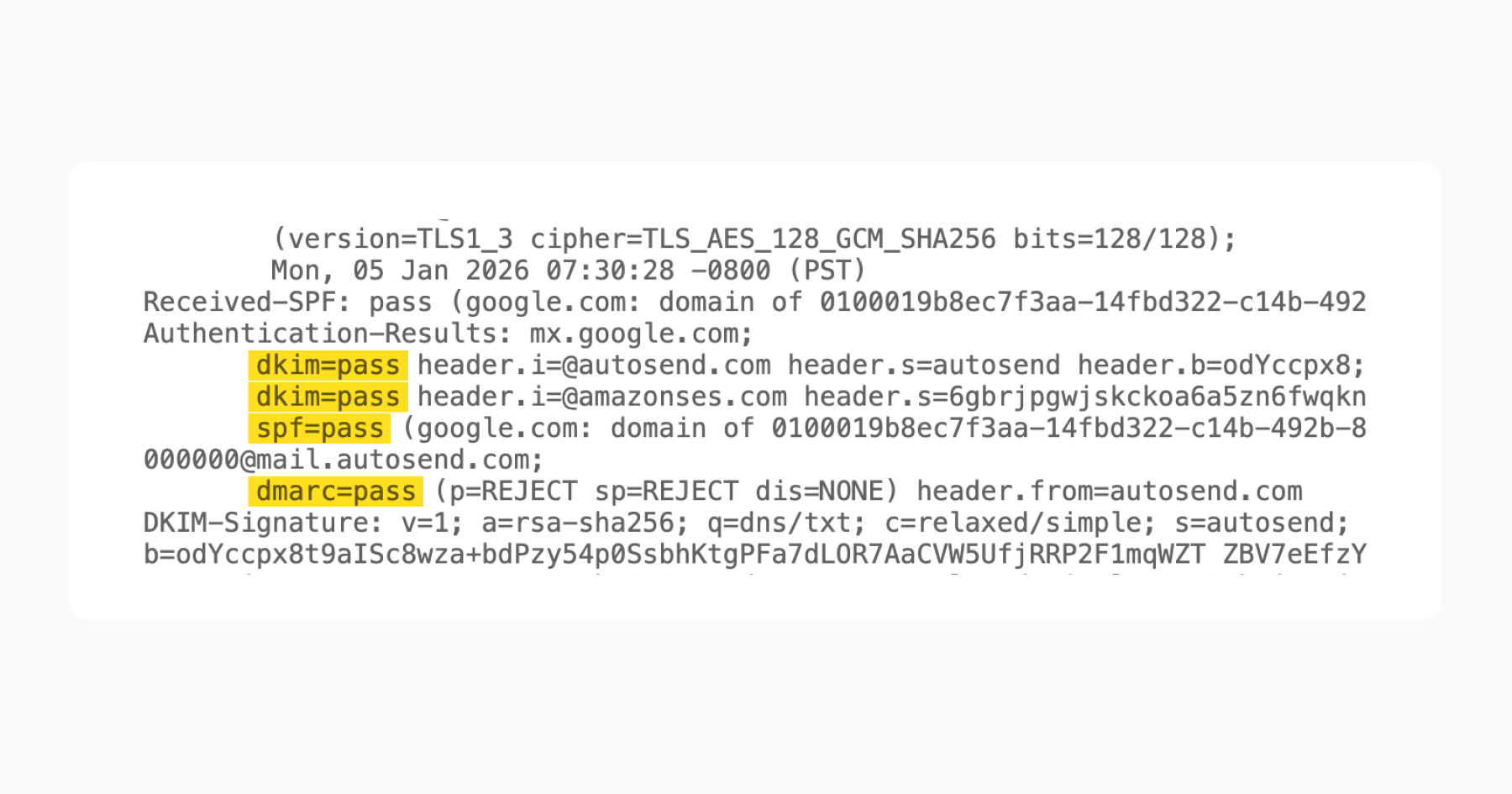
Next, send yourself a test email and look at the raw headers. In Gmail, click the three dots and choose "Show original." Look for the Return-Path and Authentication-Results headers. This will show you exactly what's failing.
If you've set up DMARC reports (the rua= part of your DMARC record), you'll get XML reports showing authentication failures. They're ugly to read but they tell you exactly what's going wrong. Just give it to Claude or ChatGPT for interpretation.
The fix usually involves three changes.
Change your DMARC to relaxed alignment. Find your DMARC record and look for adkim=s; aspf=s. Change both of those to r instead of s. This tells email receivers that subdomains are okay as long as they're part of the same organization.
Add your email service to your main domain's SPF record. If you're using AutoSend, add include:amazonses.com to your SPF record. For SendGrid, add include:sendgrid.net. For Postmark, add include:spf.mtasv.net. Your email service's documentation will tell you what to add.
Change -all to ~all in your SPF record. This changes from "reject" to "mark as suspicious" which is safer and more forgiving if something goes wrong.
That's it. No content changes, no IP warming, no deliverability magic. Just three DNS updates and your emails will stop showing warnings.
If you're seeing warnings, here's what to check. Is your email service included in your main domain's SPF record? Are you using ~all at the end of that record instead of -all? Do you have DKIM keys from your current email service in your DNS? Do you have only one DMARC record with relaxed alignment?
Send yourself a test email and check the headers in Gmail (three dots, then Show original). Make sure SPF, DKIM, and DMARC all show as passing.
Email authentication has been around for years, but Gmail and Yahoo made their requirements stricter in 2024. What used to work fine might now trigger warnings.
That orange warning banner kills trust. But it's fixable with DNS records. Once you understand what SPF, DKIM, and DMARC actually do, fixing them is straightforward.
Think of it this way: SPF says who can send emails for you. DKIM proves the email hasn't been tampered with. DMARC says what to do if those checks fail. Get those three working with relaxed alignment and you're done.
Email authentication shouldn't be this confusing. The problem is that most email services just give you DNS records to copy without explaining what they do or why they matter.
If you're stuck on this, check your email service's documentation for their SPF and DKIM setup instructions. Most have a support article that walks through it step by step.
And if you're still seeing warnings after making these changes, reach out to your email service's support. They can usually spot the issue in a few minutes since they've seen it hundreds of times before.
The key is understanding that strict alignment is what breaks things for most people. Switch to relaxed alignment and make sure your email service is properly authorized in your DNS. That solves it 90% of the time.
Bonus tip: Disable open rate tracking for your emails if you're using a new domain to send emails.
Related Articles
Still wondering?
See what your favorite LLM has to say about us,
then make an informed decision.